Importing Image Files
The first step of importing image files is to choose the files you want to import, while the second step is to select the image settings. Refer to the topic Image Loader for information about the options and settings available on each screen of the Image Loader.
 How to Import Image Files
- Choose File > Import Image Files on the menu bar.
- Do one of the following in the Import Datasets dialog:
- Click the Add button and then select the file or files you need to import in the Add File(s) dialog.
- Click the Open Folder button and then select the folder with the files you need to import in the Current Folder dialog. Note that all files in the selected folder and its subfolders will be added to the list of files.
- Click the Recent Files button and then select an image file in the drop-down list.
- Check the Reverse sort option to change the sort order of image files, if required.
If checked, the last image in the image sequence will become the first image in the stack and the first image will become the last.
- Click the See Preview button to visualize the contents of a selected file, optional (see Previewing Images).
Note Previews are not available for RAW data and a number of other file formats.
- Click the Next button.
- If you are importing standard image files, a 3D volumetric dataset, or an ORS Object file (*.ORSObject extension), the next screen appears.
- If you are importing raw data, select the size settings, data type, and offset into file on the Raw Data Settings screen (see Settings for Importing RAW Files).
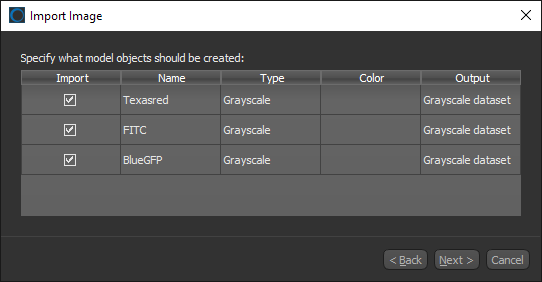
- If you are imported a CZI file with multiple objects, choose the model objects that you want to create in the Import Image dialog, shown below, and then click the Next button.

- Do the following on the Image Settings screen (see Image Settings):
- Enter a name for the imported image data in the Image group box, optional.
This is the name that will appear in the Data Properties and Settings panel to identify the imported data.
- Enter an image sampling rate for the X, Y, and Z axes in the Image sampling edit boxes, if required (see Image sampling).
Note If you are importing data with a time dimension, you can also set a sampling rate for the "T" dimension.
- Set the image spacing values for the X, Y, and Z axes in the Image spacing edit boxes, as required (see Image spacing).
Note Image spacing represents the absolute distance between slices of data. Some file formats contain this information, in which case the fields will automatically show the correct values. For other file formats, such as RAW, you may have to set these values accordingly.
- Enter any required Offset and Slope values in their respective boxes, as well as the type of unit that is associated with the data, such as intensity, HU, or density, (see Physical conversion).
- Select the invert options or an axis transformation, if required (see Transform).
- Enter a name for the imported image data in the Image group box, optional.
-
Click the Crop Image button in the Transform box, if you need to crop your data (see Cropping Image Data).
- Review the summary of the selected data in the Information box, optional.
Note If the total size of the dataset exceeds your system's capabilities, you may have to sample the data.
- Select the Import another dataset option if you need to import another dataset.
In this case, you can choose to apply the selected crop settings to the next image data you import by selecting the Keep same geometry option.
- Do one of the following:
- Click the Finish button to imported the selected image data.
When processing is complete, the imported data will appear in the Data Properties and Settings panel (see Image Properties and Settings). Refer to Visualizing Images and Processing Images for information about the tools available for visualizing and processing your data.
- Click the Continue button to choose additional image data to import.
- Click the Finish button to imported the selected image data.
 Configurable Actions for Importing Images
You can configure the following actions for importing image files in the Preferences dialog. See Configurable Actions for information about modifying a default action.
|
Action |
Key |
Mouse |
|---|---|---|
|
Import image files |
Left Ctrl + I |
-- |


